Misc. Vendor
Fired On Images Transfer Kit
Fired On Images Transfer Kit
SKU:foii
Couldn't load pickup availability
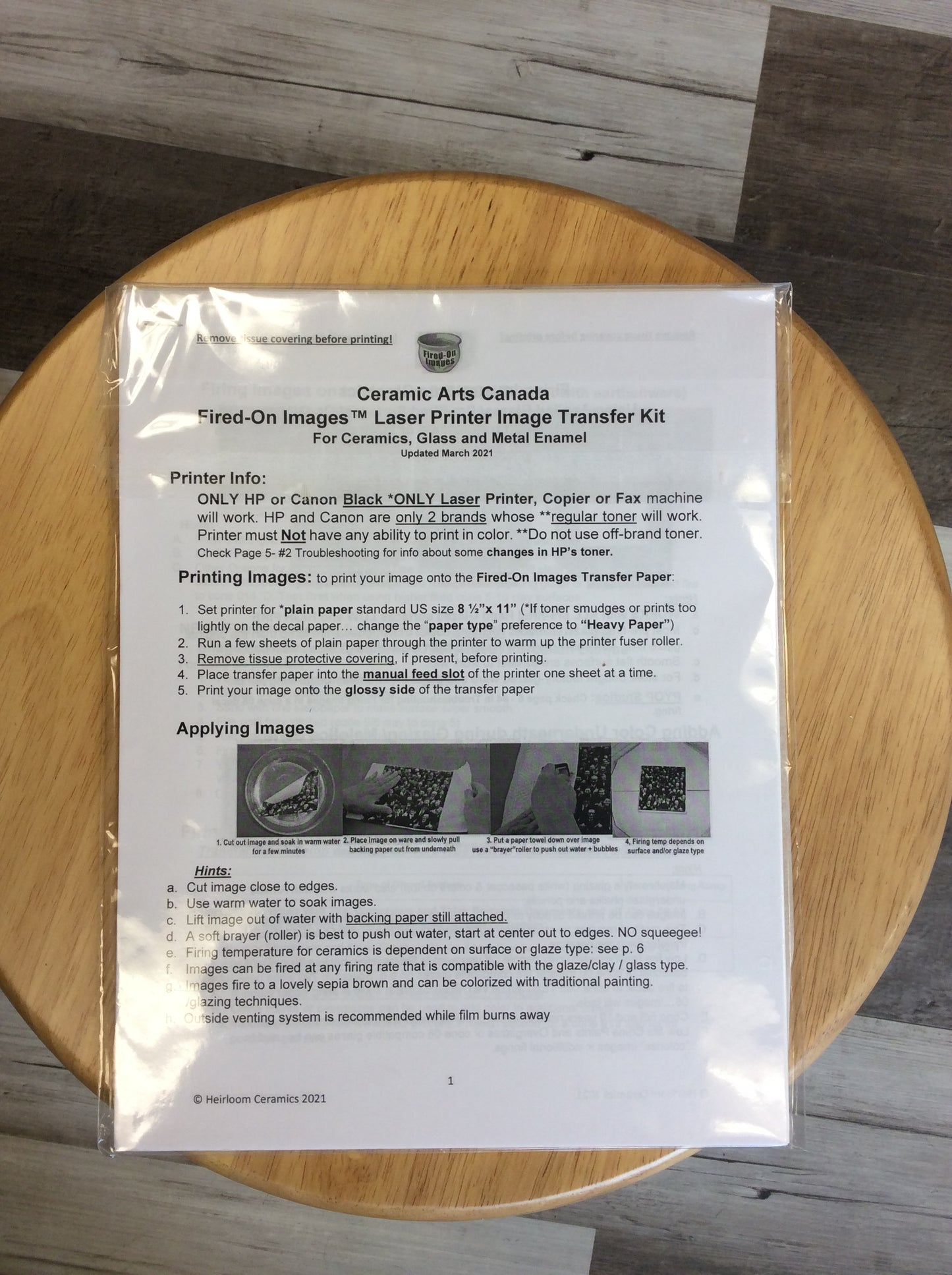
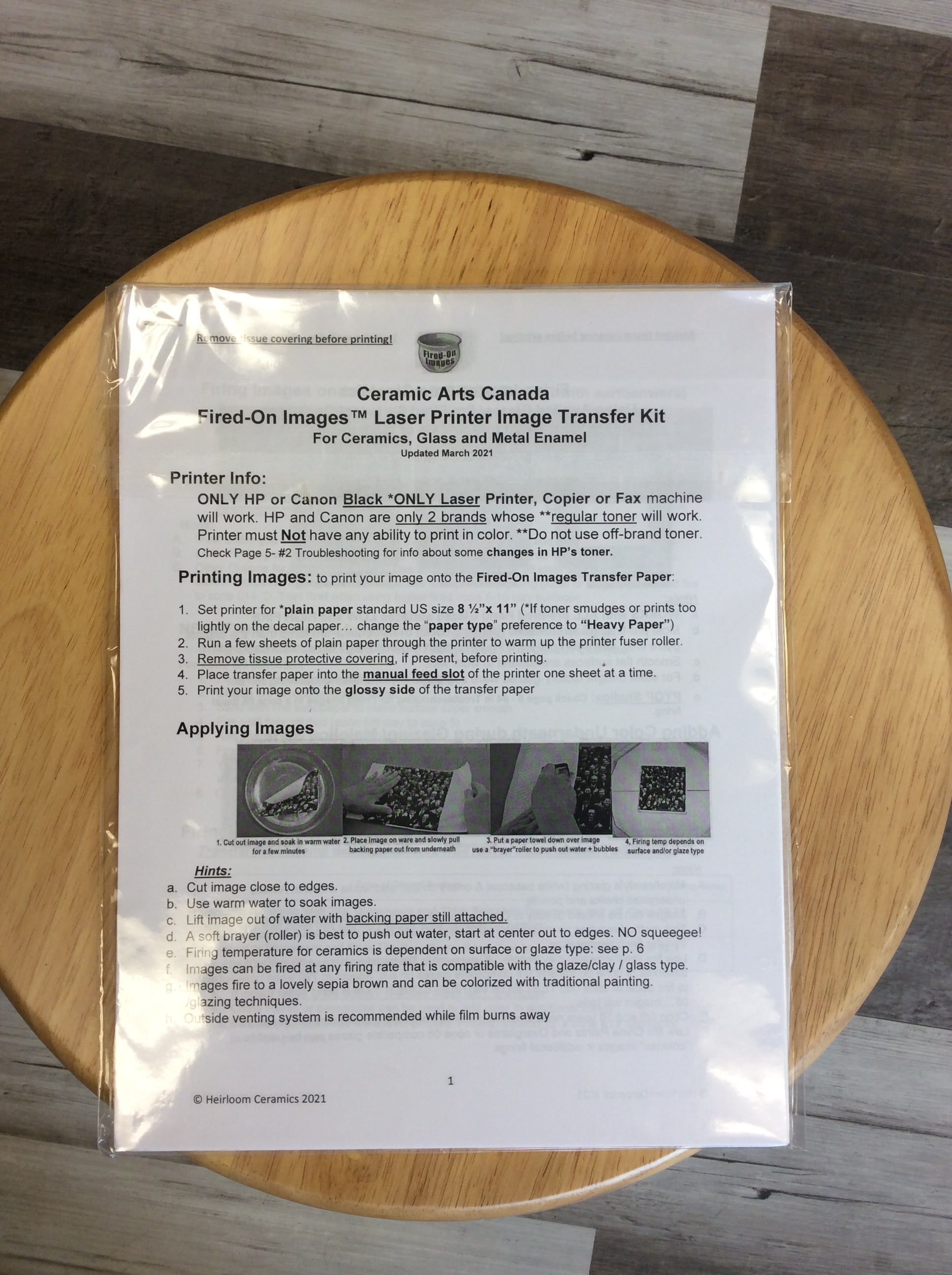
The 10 Pack of Fired-on Decal Paper includes:
- Ten sheets of decal transfer paper.
- Instructions for creating your unique decals, applying them and firing in your kiln.
- Troubleshooting tips.
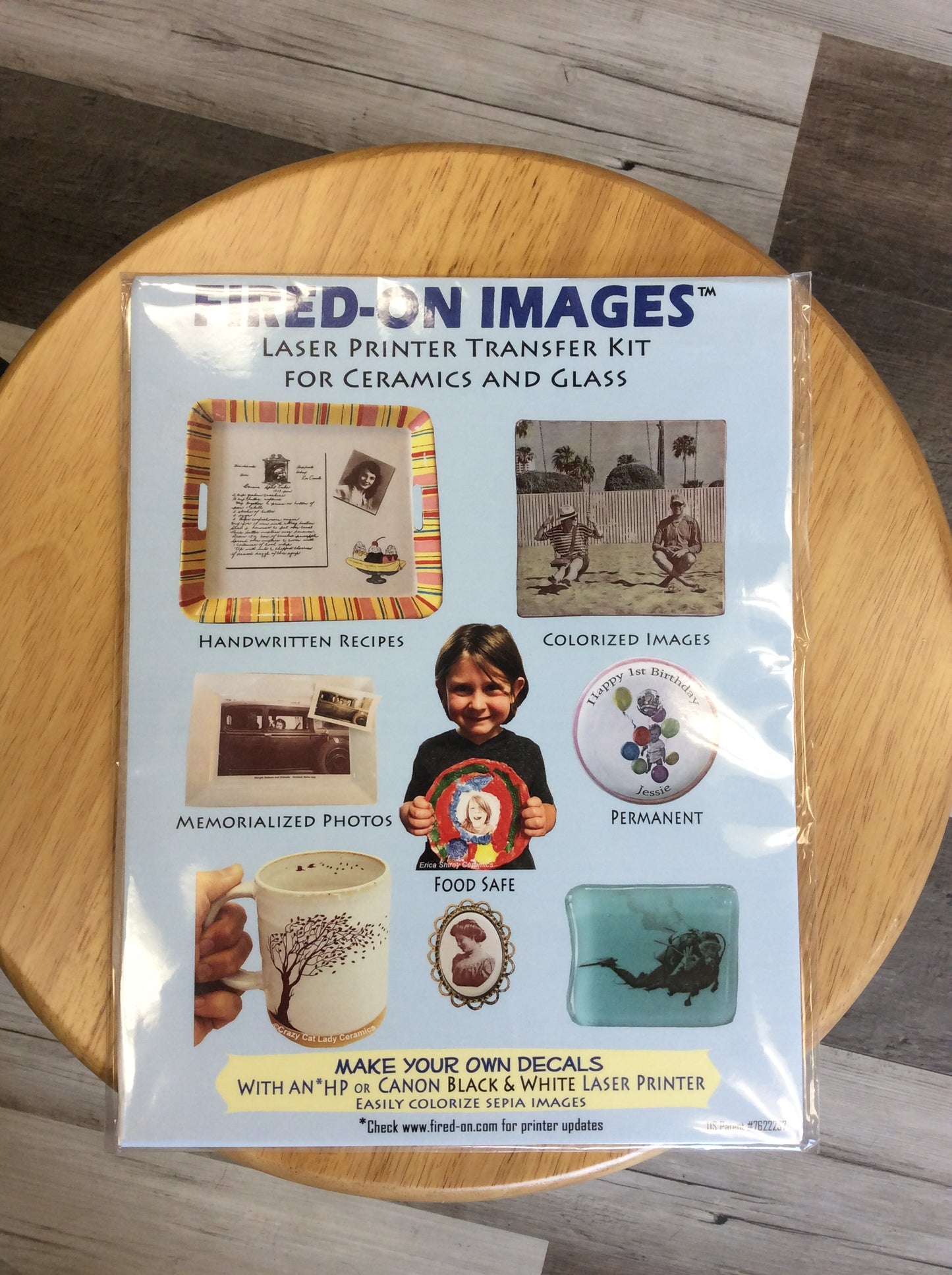
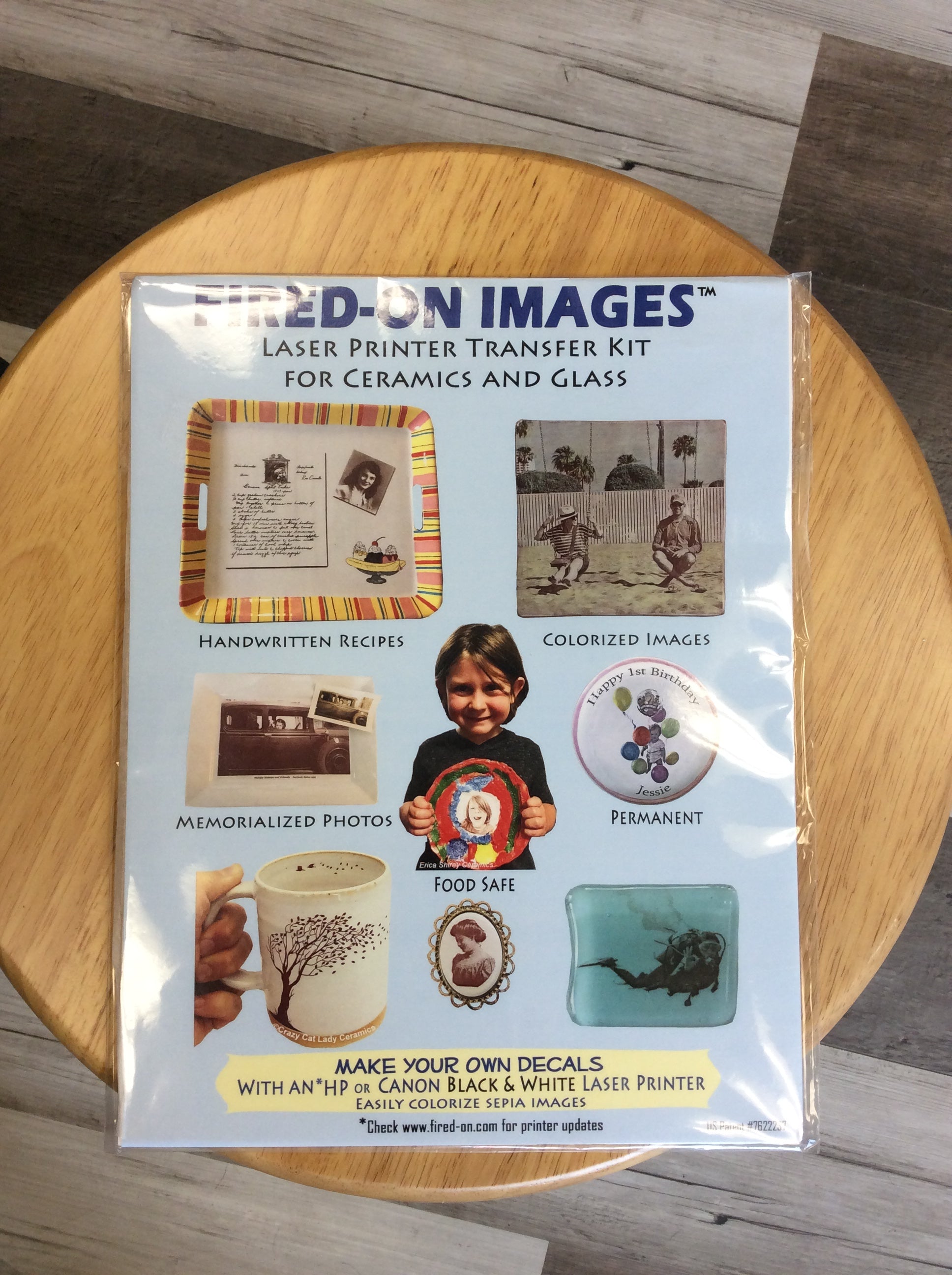
Decal paper, or transfer paper, works exclusively with HP or Canon B&W laser printers to put any image you can create or find on any piece of pottery.
You only need 3 things to fire on your own decal images: An HP or Canon Black and White laser printer, Fired-On Images Transfer Paper, and access to a kiln.
First, find any image from your personal collection on your computer and print it out on the decal paper.
Once the decal begins to separate from the paper backing, remove it and slide the decal on to your surface.
Position the decal and blot off the excess water, and wait an hour or so for it to completely dry.
Fire the item in your kiln and you have a permanent image fired onto your item.
FIRED-ON IMAGE LASER DECAL PAPER FAQ’s
A full set of detailed Instructions comes with Fired-On Images 10-sheet pack
1. Will my printer work?
Any model HP or Canon Black-Only Laser Printer or copier will work as long as it has NO capability of printing in COLOR. NO other BRANDS will work.
2. Why has some toner wiped off or smudged on the decal paper BEFORE Firing?
Some of the newer printers are super energy efficient and may not get hot enough to seal the image to the decal paper. Changing the “paper type” setting in the printer menu to “HEAVY Paper” will slow down the printing process and seal the toner into the decal paper securely. Use a roller (brayer) over a paper towel to remove the water and bubbles. (no squeegees)
3. Why has my image disappeared COMPLETELY after firing?
Make sure that you are using an HP or Canon BLACK -Only Laser printer or copier to make your image. Use a fresh toner cartridge if your results fade over time. Only use authentic HP toners, no substitutes. Make sure to use only Fired-On Laser Decal Paper.
4. Why is my image very faint or faded AFTER firing?
Decal firing temperature is too hot. Try again at a lower firing temperature
5. Why has my image wiped off or smudged AFTER firing?
Decal firing temperature too low, try again at a higher temperature.
6. Can my image be in color?
All images fire to a lovely sepia brown. The sepia color will change slightly depending on the color underneath the images. Color can also be added while glazing or after the decal firing in additional firings. Instructions for adding color are included in the instructions.
7. Will my glaze work with Fired-On Images Decals?
For best results use a NON-Moving glaze with an ON-Glaze application. Decal firing temp is dependent on the glaze/ clay used. A comprehensive Firing Temp Chart is included with instructions. If your glaze looks weird or bubbly after the decal firing, then it is not compatible with a 2nd firing.
8. Can I use store-bought glazed ware?
Yes! For best results be look for a microwave and dishwasher safe label printed on the bottom.